
How to Set Up Streaming Apps on a New Smart TV (2026 Guide)
A step-by-step plan for getting a new smart TV updated, connected and signed in to the apps you already pay for — without losing an evening to menus.
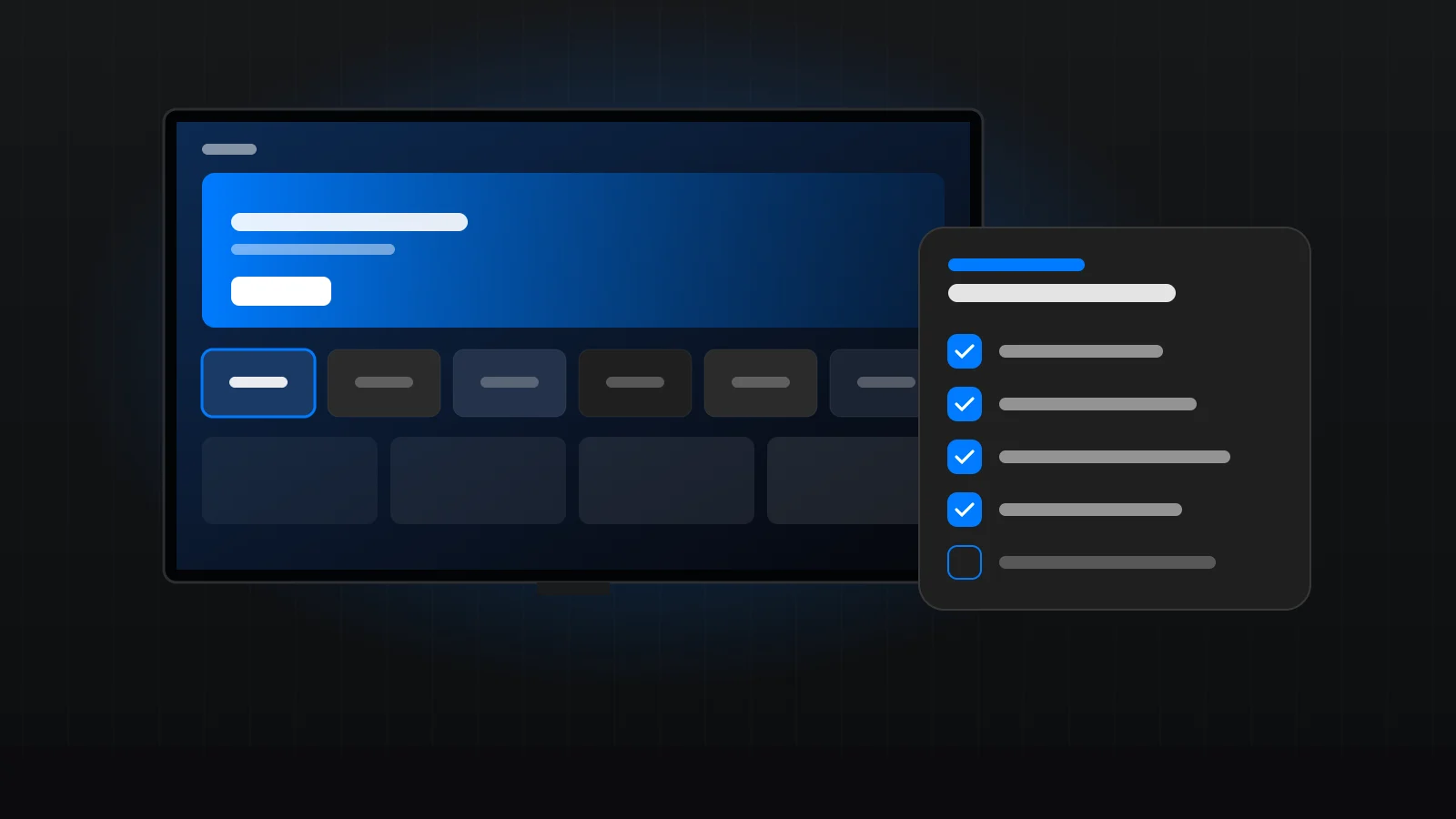
A new smart TV is exciting for about ten minutes — until you meet the setup screens. Terms to accept, accounts to create, updates to download, apps scattered across the home screen. Here is the order we use in our own sessions to get a new TV from the box to a clean, working setup.
Start with placement and connections
Before you power anything on, think about where the router is. A TV that sits two rooms away from the router behind a wall will struggle with 4K playback no matter how good it is. If you can run an Ethernet cable to the TV, do it now. If not, plan to check the Wi-Fi signal once the TV is connected.
If you use a soundbar, connect it to the HDMI port marked ARC or eARC. Keep a full-bandwidth HDMI port free for a streaming stick or game console.
Go through the first-time setup carefully
The first-run wizard asks for language, network and a TV account (Samsung, LG, Google or similar). The account is useful for app downloads and updates, so create one or sign in with yours. You can usually skip optional data-sharing and advertising settings; read each screen rather than tapping “Agree” on everything.
Update before you install anything
New TVs almost always ship with older software. Open the settings menu, find Software Update (usually under Support or System), install everything available and turn on automatic updates. This single step prevents a surprising number of app crashes and audio glitches.
Install only the apps you use
Make a short list of the streaming services your household already subscribes to. Install those official apps from the TV’s app store — never from outside websites — and remove pre-installed apps you will not use. A home screen with six apps you use beats one with thirty you scroll past.
Sign in the easy way
Typing an email address with a TV remote is painful. Most apps now show a code or QR code on the TV; you scan it with your phone or visit the provider’s website and sign in there. Use your own account, then create profiles for each household member and a kids profile with the right rating limit.
Fix the picture in two minutes
TVs leave the factory in a bright “vivid” or “standard” mode designed for shop floors. For films and series, switch to Movie or Filmmaker Mode, and turn off motion smoothing (the “soap opera effect”). Leave HDR settings on automatic. Those changes do more for picture quality than any streaming setting.
Get the sound right
Choose where sound should come from — TV speakers, soundbar or receiver — and set it as the TV’s audio output. Turn on HDMI-CEC (Anynet+ on Samsung, SIMPLINK on LG) so the TV remote controls the soundbar volume. If voices sound thin or out of sync, set the digital audio format to Auto or PCM first.
Check your connection at the TV
Run the network test in the TV settings, or play something in the highest quality your plan allows. If playback buffers, move the router into the open, use 5 GHz Wi-Fi, or add a mesh node near the TV. Our Samsung and LG smart TV guide covers the exact menus.
Leave the household with a plan
Rename the HDMI inputs (“Fire TV”, “Console”), put the most-used apps first and show everyone how to get back to the home screen. Ten minutes of explanation saves a lot of “the TV is broken” calls later.
When it is worth getting help
If you are setting up more than one TV, adding a soundbar and a streaming stick, or simply do not want to spend an evening in menus, a remote session is quicker. Our packages start at $39 one-time for a single device — compare the packages.
Common questions after setup
Why does the TV ask me to accept so many terms?
Smart TV makers bundle viewing-data and advertising options into setup. Required terms let the TV work; optional ones, such as viewing-information services and interest-based ads, can usually be declined without losing any apps.
Should I use the TV’s apps or a streaming stick?
Use the TV’s built-in apps if they are quick and every service you use is available. Add a stick later if the TV slows down or stops receiving updates.
How often should I update?
Leave automatic updates on for both the TV and its apps, and restart the TV fully every few weeks by unplugging it for a minute.
Want it done for you?
Book a free 15-minute setup check. We confirm your device is supported, recommend the right package and send you available times. You keep your own subscriptions and accounts; we make them work properly.
Keep reading
Fire TV Stick vs Roku vs Apple TV: Which Fits Your Living Room?
An honest comparison of the three most popular streaming devices in US homes — and how to pick the one…
Read article